
You added the library, you typed the right path, the scan ran for two seconds and found nothing. No error. The folder is plainly full of films.
This is the most common Docker failure there is, and it is almost always one number in the wrong place.
Why it fails silently
A container has its own idea of who is running inside it. Your files on the host belong to a user, identified by a number rather than a name. Those two numbers have to line up, or the container is a user with no rights to your media.
When a program cannot read a directory, the operating system does not say “you are not allowed”. It reports an empty directory. So Jellyfin scans, finds nothing, reports nothing, and everything looks fine.
Note
This is not a Jellyfin problem and there is nothing to fix in Jellyfin. Every container that reads files off a host hits it.
Prove it in one command
Ask the container what it can see:
docker compose exec jellyfin ls -la /mediaThree possible answers.
A list of your folders means permissions are fine and your problem is elsewhere: check the path, and check the library’s content type.
Permission denied means you have found it. Read on.
An empty listing is the same thing wearing a disguise, and also means read on.
Find the numbers
Two numbers matter: the one your files belong to, and the one the container runs as.
Your files, from the host:
ls -ln /srv/media-n prints numbers instead of names, which is what you want, because names do
not cross the container boundary. The third and fourth columns are the owner and
the group.
The container:
docker compose exec jellyfin idIf those do not match, that is the whole problem.
Fix it the right way round
Change the container to match your files, not the other way around. Your files are the thing with a reason to be owned by somebody.
Say ls -ln showed 1000 1000. Then in your compose file:
services:
  jellyfin:
    user: 1000:1000
And restart:
docker compose up -dRe-run the ls -la check. If the folders appear, scan the library again.
Careful
Do not set user: 0:0, and do not run chmod -R 777 on your media. Both work.
Both mean a compromised container has full write access to everything you own,
and the second one leaves your files permanently open to every process on the
machine. Neither is faster than setting the right number.
When your files belong to several owners
A library built up over years often has files owned by two or three different users, usually because some arrived over a network share and some did not.
Give the container a supplementary group that can read all of them:
    group_add:
      - "1001"
Or, if it is genuinely a mess, take ownership of the whole tree once, on the host:
sudo chown -R 1000:1000 /srv/mediaThat is a real change to your files, so be certain about the path before you run it.
On a NAS
Synology and QNAP do not use 1000. They create service accounts with their own numbers, and the number differs between models and versions.
Find it by looking at the media itself:
ls -ln /volume1/mediaUse what that prints. Do not copy a number out of a forum post, including this one.
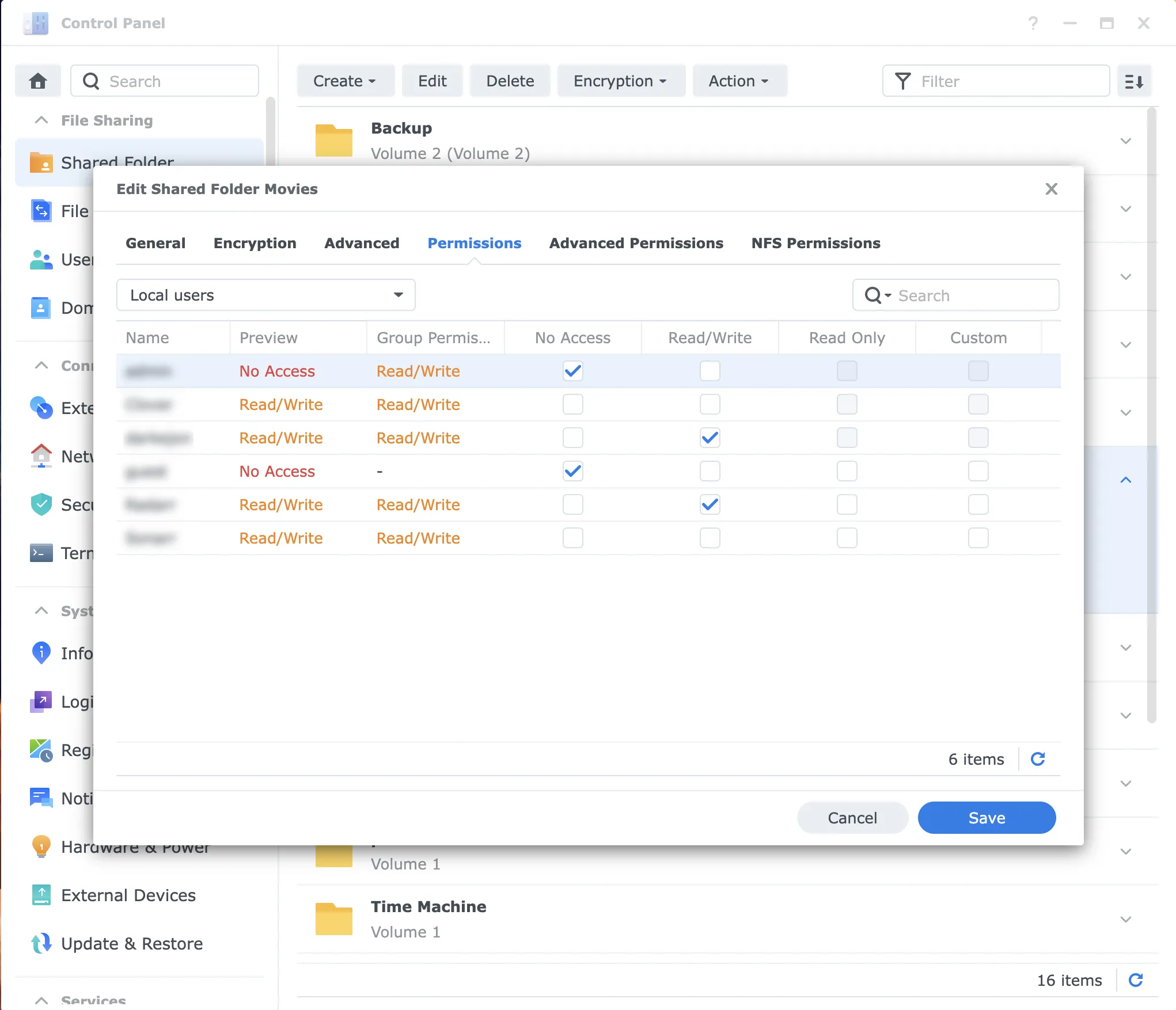
On Synology specifically, a shared folder also has its own permission list on
top of the file ownership, and both have to allow the user. A correct user:
line and a shared folder that does not grant that user access fails exactly the
same silent way.
Read-only is still the right setting
Fixing permissions does not mean granting write access. Keep the mount read-only:
- /srv/media:/media:roRead-only and correctly owned is the target. Jellyfin needs to read your films and nothing more.
A checklist when it still will not scan
docker compose exec jellyfin ls -la /medialists your folders- The library path is the container path,
/media/Movies, not the host path - The library’s content type matches what is in it
- The files are named the way the scanner expects
- The log says something:
docker compose logs -f jellyfinwhile the scan runs
Five is the one people skip, and it is the one that tells you the answer.