
A large number of users searching for solutions to their “Jellyfin is broken” questions, comes down to a naming problem. The Jellyfin library scan finishes, half the posters are missing, one film has become a different film, and a television series displays as ninety loose episodes with no series attached.
Jellyfin is not guessing badly. It is reading your filenames, and your filenames are not telling it enough to do the job it needs to do. So we need to make those filenames good.
How Jellyfin identifies media
The Jellyfin library scan does three things, in order.
-
It works out what kind of thing a file is, from the library it is in. A library set to Movies expects films. That is why films and television shows cannot share one library: it is not a preference, it changes what the scanner is looking for.
-
It extracts a title and a year from the path. Both the folder name and the filename are read, and the folder usually wins.
-
It looks that title and year up against an online database and takes the match. Given a clean title and a year this is almost always right. Given a non-descript filename such as
movie_final_2.mkvit has a title of “movie final 2” and no year, and it will find something, which sometimes can be worse than finding nothing.
Note
Nothing here is Jellyfin being fussy. Plex, Emby and Kodi all want the same shapes, because they all solve the same problem the same way. Files named for one generally work in the others.
Films
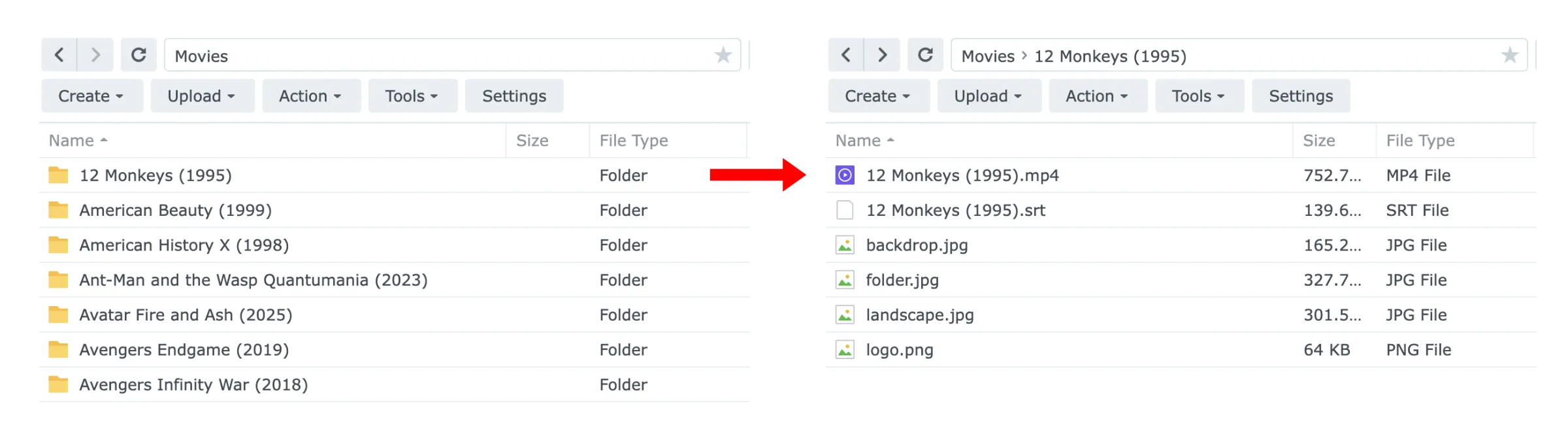
One folder per film, named Title (Year), with the file inside named the same.
Movies / Arrival (2016)/ Arrival (2016).mkv
Movies / The Third Man (1949) / The Third Man (1949).mkv
Movies / Heat (1995) / Heat (1995).mkv
The year is doing real work. There are two films called Heat, three called Crash, and a concerning number of remakes of the same name. Without a year you get whichever the database ranks highest, which is usually the newest and not always the one you want.
The folder is doing real work too. It is where subtitles, artwork and extras live, and it is what keeps a film’s parts together when you move it.
Tip
Files named Title.Year.1080p.BluRay.x264-GROUP.mkv usually still work, because
Jellyfin strips the technical parts it recognises. Renaming them properly is
still worth it: the stripping is a heuristic, and it is the source of most of
the odd matches.
Television
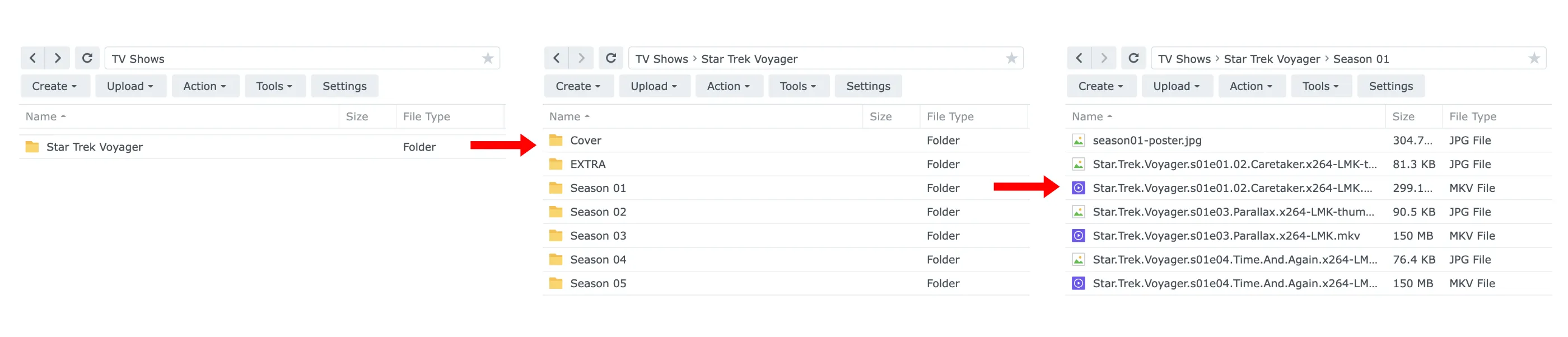
A folder per series, a folder per season, and season and episode numbers in every filename.
Shows / Detectorists / Season 01 / Detectorists S01E01.mkv
Shows / Detectorists / Season 01 / Detectorists S01E02.mkv
...
Shows / Detectorists / Season 02 / Detectorists S02E01.mkv
S01E01 is the preferred structure to use to represent Season and Episode numbers. Jellyfin understands several others, including
1x01 and Season 1 Episode 1, but S01E01 is unambiguous and it is what
every tool writes.
A year after the series name resolves the ambiguous ones, and there are more of
those than you would think: Shows/Doctor Who (2005)/.
Specials, and other awkward cases
Specials, including Christmas episodes, go in a folder called Season 00 or
Specials and are numbered S00E01 upward in broadcast order.
Two episodes in one file (such as double-episode specials that you have as a single file) are named with both numbers: Show S01E01-E02.mkv.
A series that the database splits differently from the way your files are split is the hardest case there is, and there is no naming that fixes it. Set the library to use absolute numbering, or correct the identification by hand.
Things that quietly break a library
Films and television in one folder
The scanner is looking for one kind of media, defined by each library when you set it up. Mix up Movies and TV Shows in a library folder that was set to host only movies, and it will get the content categorisation wrong.
No year on a common title
If content was incorrectly identified, check if a year was added, and if not add that first to see if it resolves your issue.
A folder per file for television shows
Group episodes into folder seasons. If each episode has its own folder, the identification process will likely fail. If episodes are named well, you often get away with all episodes across all seasons in one parent folder.
Sample files and extras loose in the folder
A sample.mkv next to the film can be picked up as the film. Extras belong in a
named subfolder: Extras, Behind The Scenes, Trailers etc.
Renaming a file after the scan
Jellyfin treats the new name as a new item, so the old entry goes and the watch history goes with it.
Get the names right before the first scan wherever you can. If you are going to rename a thousand files, do it before you point Jellyfin at them, not after. There is no undo for a lost watch history and no tool that reattaches it.
Fix a film that matched the wrong one
It happens, usually to a remake.
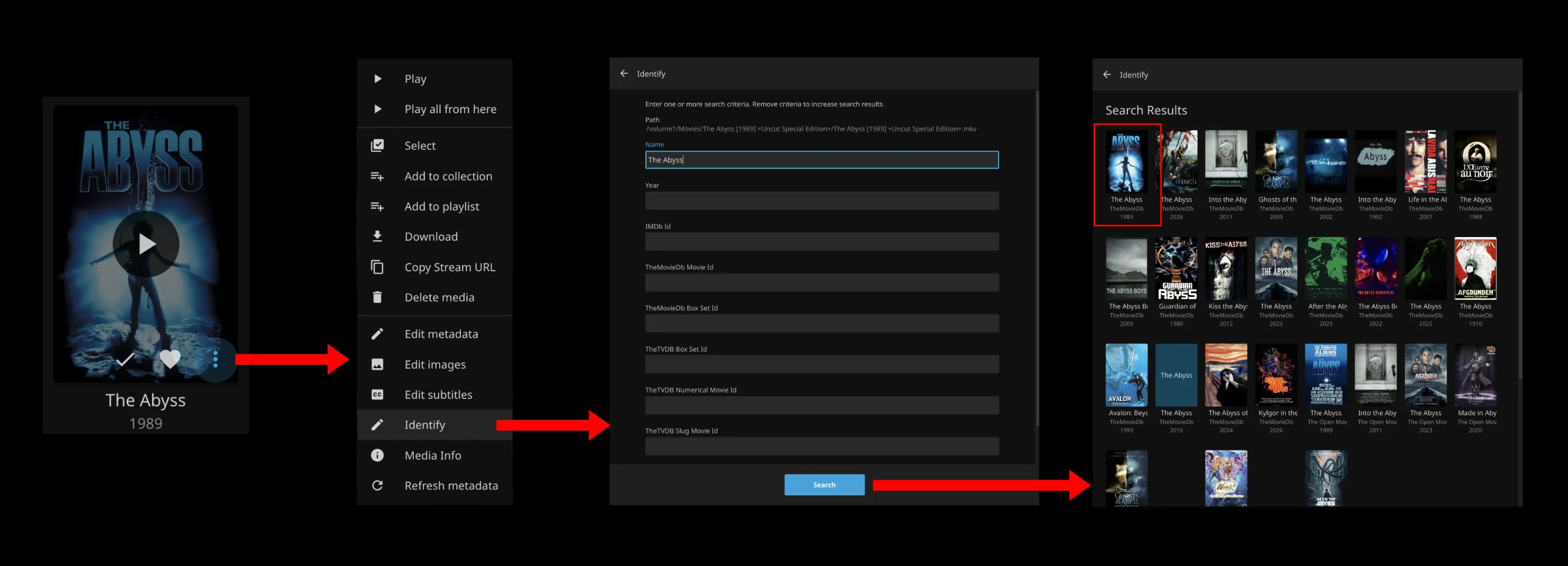
- Open the film in the Jellyfin web interface.
- Open its menu and choose Identify.
- Search by title and year, or paste a TMDB id, which is exact.
- Pick the right result and confirm.
- Refresh its metadata.
Tip
Fixing it by hand does not fix the filename. Rename the file too, or the next clean rescan of that library will make the same mistake again.
Renaming in bulk
Nobody renames a thousand files by hand.
FileBot is the usual answer. It is paid, it is reliable, and it renames from the same databases Jellyfin reads, which is the reason it matches so well.
tinyMediaManager is free for the basics, does renaming and artwork, and has a proper preview so you can see what it intends before it does it.
Whatever you use, rename a copy of twenty files first and look at the result. Every one of these tools has a preset that is subtly wrong for your library, and twenty files is a cheap way to find out which.