
A library is a folder plus a set of rules for reading it. Getting the rules right at the start saves a full rescan later, and there are only about four that matter.
Before you add anything
Check your filenames. Jellyfin reads titles from paths, and a library scanned from bad names has to be scanned again from good ones, which costs you any watch history attached to the wrong entries. How to name your media files for Jellyfin takes five minutes to read.
Add the library
- Open Dashboard, then Libraries.
- Choose Add Media Library.
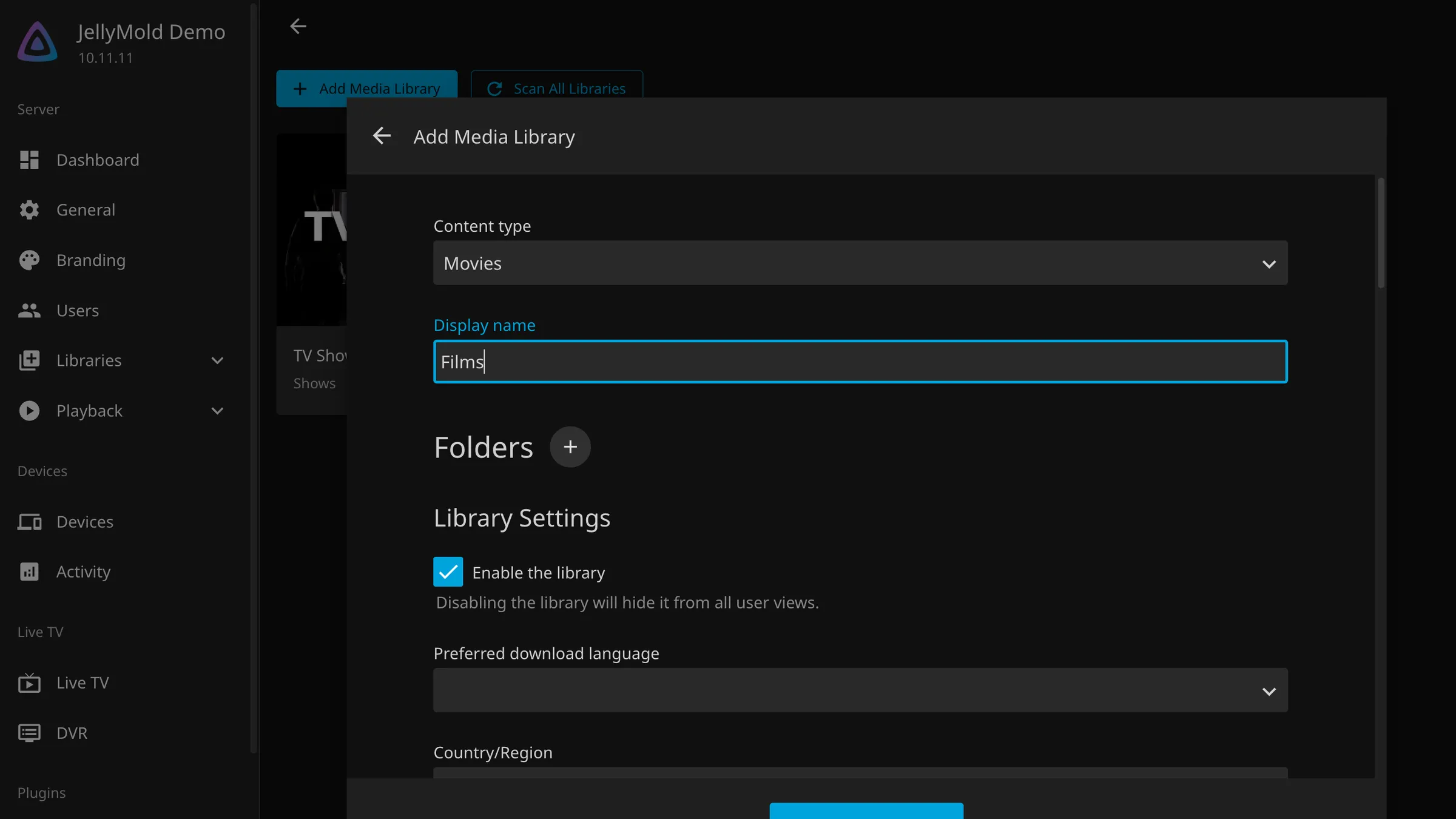
- Set the content type to Movies. Do this first: it changes every option below it.
- Give it a display name. This is what appears on the home screen, so Films or
Movies rather than
vol1-media-movies. - Add your folder. In Docker this is the path inside the container.
- Leave the rest for the moment and save.
Careful
One content type per library, always. Films and television in a single library gets both wrong, because the scanner is looking for one kind of thing at a time. Television gets its own library.
The settings that matter
Reopen the library with Manage Library and work through four things. The rest of the defaults are sensible.
Metadata downloaders
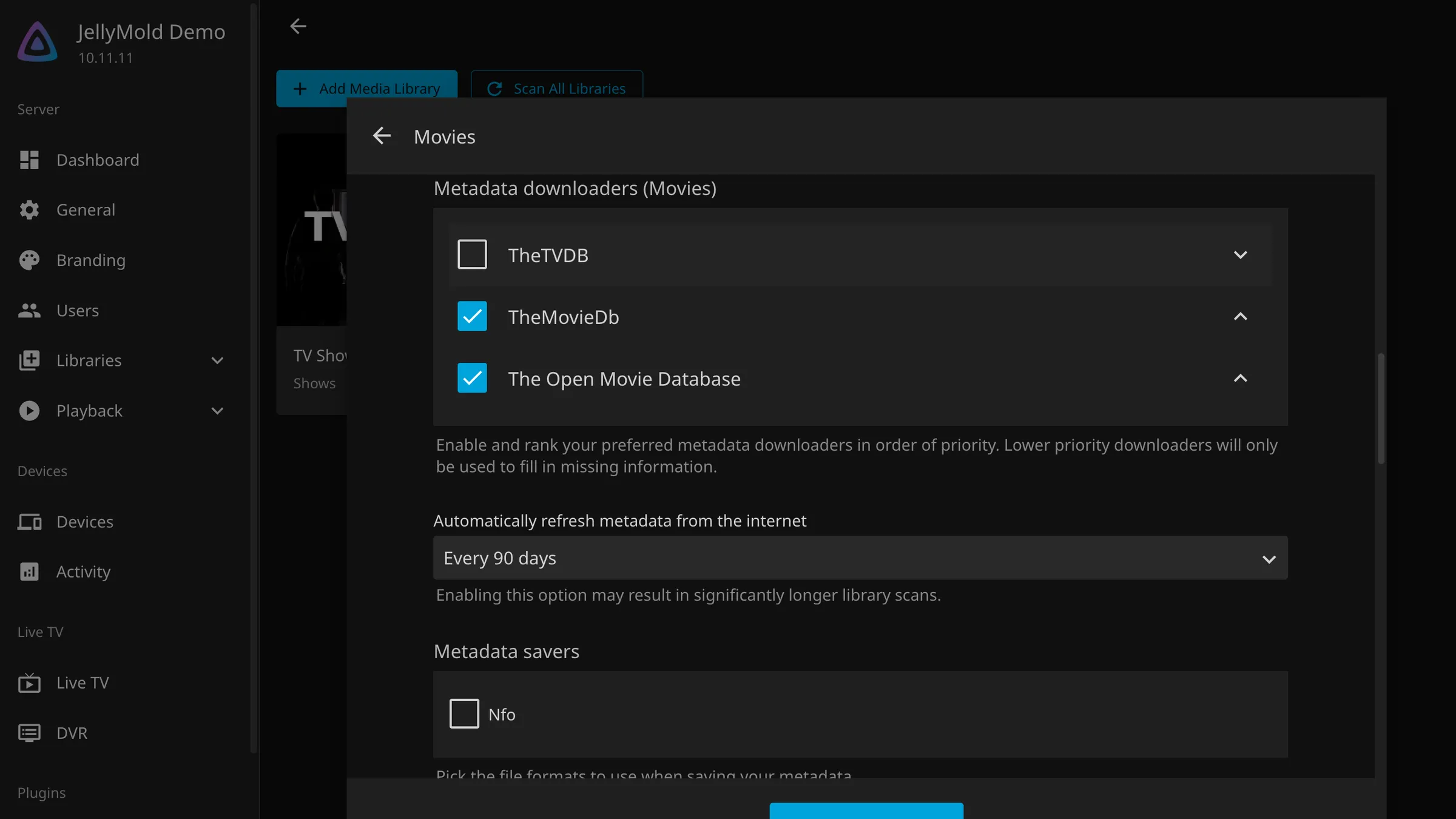
Leave TheMovieDb on. It is the source of nearly all film metadata and artwork, and it is free. The order matters: the first one that answers wins.
Preferred metadata language and country
This decides which title, which description and which poster you get. Set it once, here, because changing it later means refreshing every item.
Image fetchers
These get posters, backdrops and logos. On by default, and worth leaving on: artwork is most of what makes a library feel finished.
Real-time monitoring
Watches the folder and picks up new files as they arrive, rather than waiting for the nightly scan. Excellent on a local disk. Unreliable on a network share, where the notifications often never arrive, so turn it off there and rely on the scheduled scan.
What the first scan is actually doing
It looks longer than it should because it is doing three separate jobs.
It walks the folders and works out which files are films. This part is fast.
It asks an online database about each title and downloads the description, the cast, the release date and the ratings. This part is rate limited and is most of the wait.
It downloads artwork, which is a few files per film and adds up over a large library.
A few hundred films can take an hour or more. Watch progress under Dashboard, then Scheduled Tasks.
Tip
Let it finish before you start fixing things. Halfway through a scan, a library is full of half-matched entries that will resolve themselves, and you will waste an hour correcting things that were never wrong.
Check the result
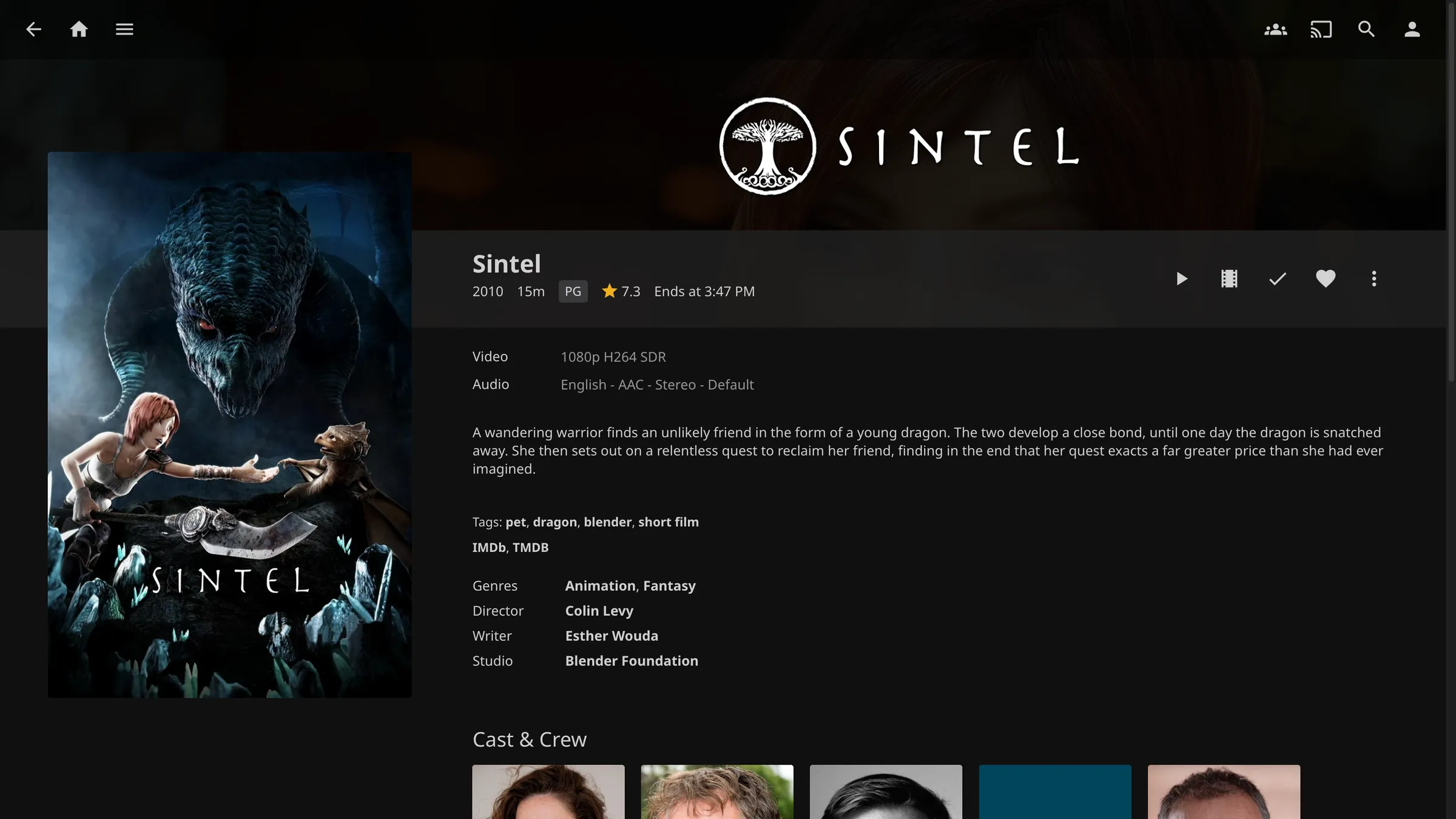
Open the library. You are looking for posters nearly everywhere, correct years, and no obvious impostors.
Two kinds of problem, with different fixes.
A missing poster with otherwise correct details is usually a database with no artwork for that title, rather than a failure. Add your own image through the item’s edit screen.
A wrong film, where you own one thing and Jellyfin shows another, is a naming problem. Fix it with Identify on that item, then fix the filename too, or the next clean rescan will repeat it.
Two settings worth turning on now
Both are one-off and both change how the library feels to use.
Trickplay gives you thumbnails while you drag the timeline. It is the single best return on ten minutes in the whole server.
Subtitles download themselves once configured, which turns a missing subtitle track from a problem into a non-event.